N-gons begone!

by Tom Grimes

trueSpace is a very forgiving modeler, and will happily handle geometry in almost any form. This is great most of the time, however if you plan on exporting your models for use in games, Virtual Earth, Expression Blend 2, other 3D applications, etc, then you will need to be a little more careful on how you construct your models, as other programs may not be as forgiving as trueSpace.
 

What is an n-gon?
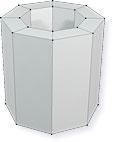
An n-gon is a polygon that has "n" sides, meaning any number of sides that is more than four. The top face on the object on the left has 8 edges defining it, making it a good example of an n-gon. As a note, the vertex in the center is expected, as it is part of the way trueSpace defines a cylinder.

A four sided polygon is called a quad, and is the standard to aim for when modeling. A three sided polygon is called a tri. Many pieces of software break a model down into triangles or tris in order to handle them in memory and draw them on screen, and this is easy to do when your object is made from quads.

However, not all render engines or software can break down an n-gon into quads or tris in order to handle it properly. trueSpace can, and can work readily with n-gons, so the object seen above will give you no problems in trueSpace.

If you run into problems in other applications, on exporting to Virtual Earth, or saving your object using LUUV, then you will want to look for this sort of face and change it.

How do I fix an n-gon?

Right click on the object to enter Point Edit mode, and click to select the face we want to correct.
Now click on the Quadrify Polygons tool, use the image above to locate it.


As you can see on the left, the Quadrify Polygons tool splits up what was one polygon into several different polygons, ensuring that each resulting polygon is a quad.
This is a quick and automatic method for fixing these kinds of faces that might otherwise give you a problem. If the Quadrify Polygons tool does not work, you can always fix such areas manually using the Add Edges tool to connect vertices together. This is also useful when you need extra control on how the faces are divided up.
Ending up with n-gons?
So just how do you end up with n-gons on your model anyway? Some primitives have n-gons as part of their design, such as the cylinder we looked at earlier.
The most common way to end up with n-gons on your object is when using the boolean tools such as Boolean Subtract and Boolean Add.
You can also get an n-gon result from using the workspace Bevel tool with Quad Mode unchecked. The image on the left shows how a boolean subtract might leave an n-gon on your object.

You can see how the rim of this object, around the hole we have made, is an n-gon. The vertices that make up the edge of the hole are also sometimes called "floating vertices", as they are not connected to those that make up the outer edge of the object itself.

The solution is the same as we saw before, simply select the face in point edit mode and use the Quadrify Tool, or optionally do the process manually using Add Edges to join the vertices together. The result can be seen here, with the edge making up the rim divided nicely into quads.
It won't take long to learn to spot these kinds of faces and to watch out for them during the modeling phase if you are planning on exporting your models from trueSpace to an external application. This will let you model to avoid them, or correct them as you go along.
If you should find such faces later in the process though, or if you find LUUV unable to save your object to OBJ format, then you can use the Quadrify Tool which will usually fix it painlessly and automatically with just a few clicks!


Original article from the 'Caligari Eye' Feb. 2009

return to trueSpace tutorials